Keycloak
This guide connects a Keycloak realm to Mercura. The screenshots are from Keycloak 26.
Before you start, copy the two Redirect URLs from Settings → Single Sign-on → Redirect URLs in Mercura (see Overview).
1. Create a realm
Skip this if you already have a realm for your users.
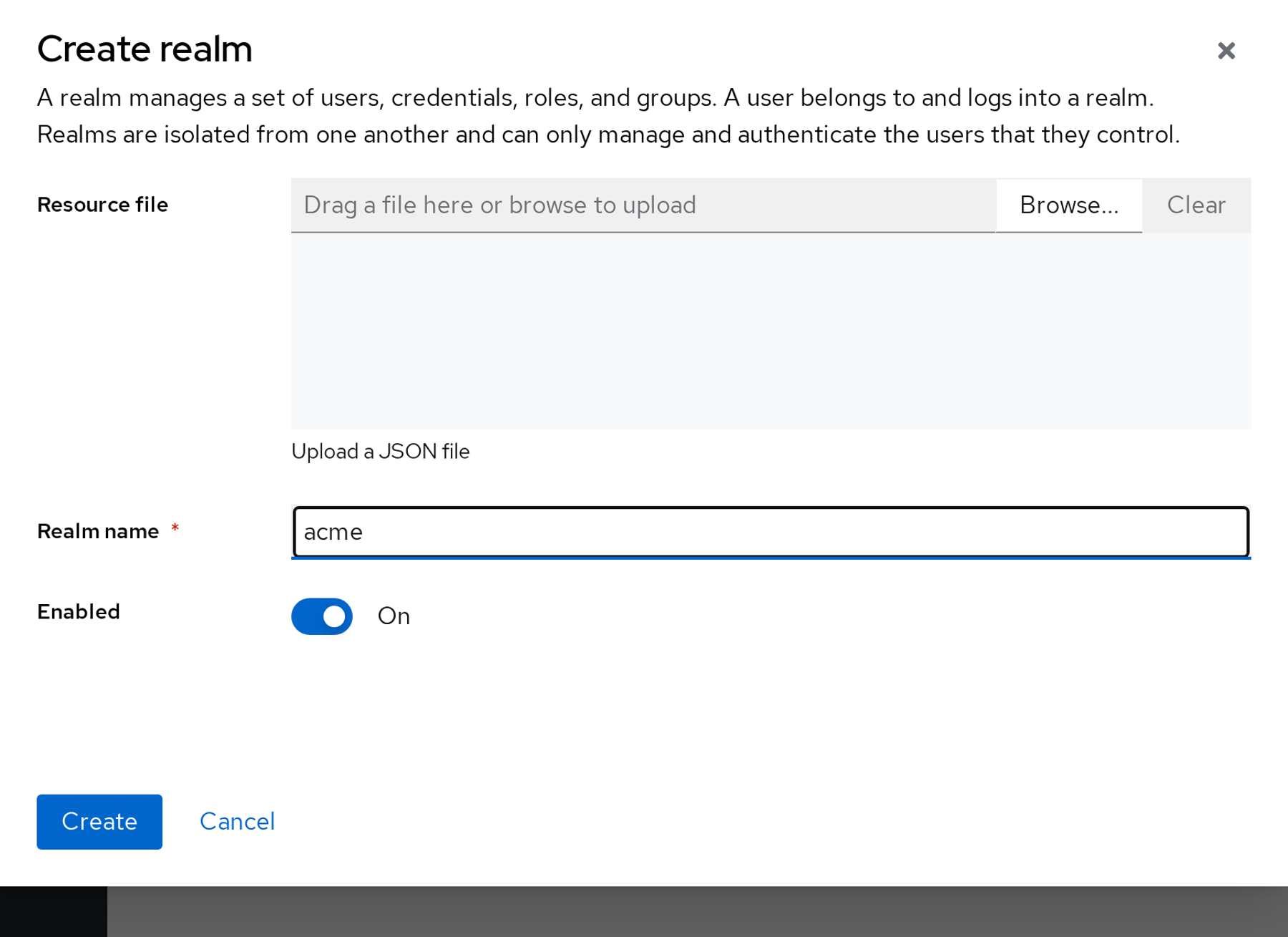
- Manage realms → Create realm.
- Realm name: e.g.
acme. The name is part of the Issuer URL. - Create.
2. Create the client
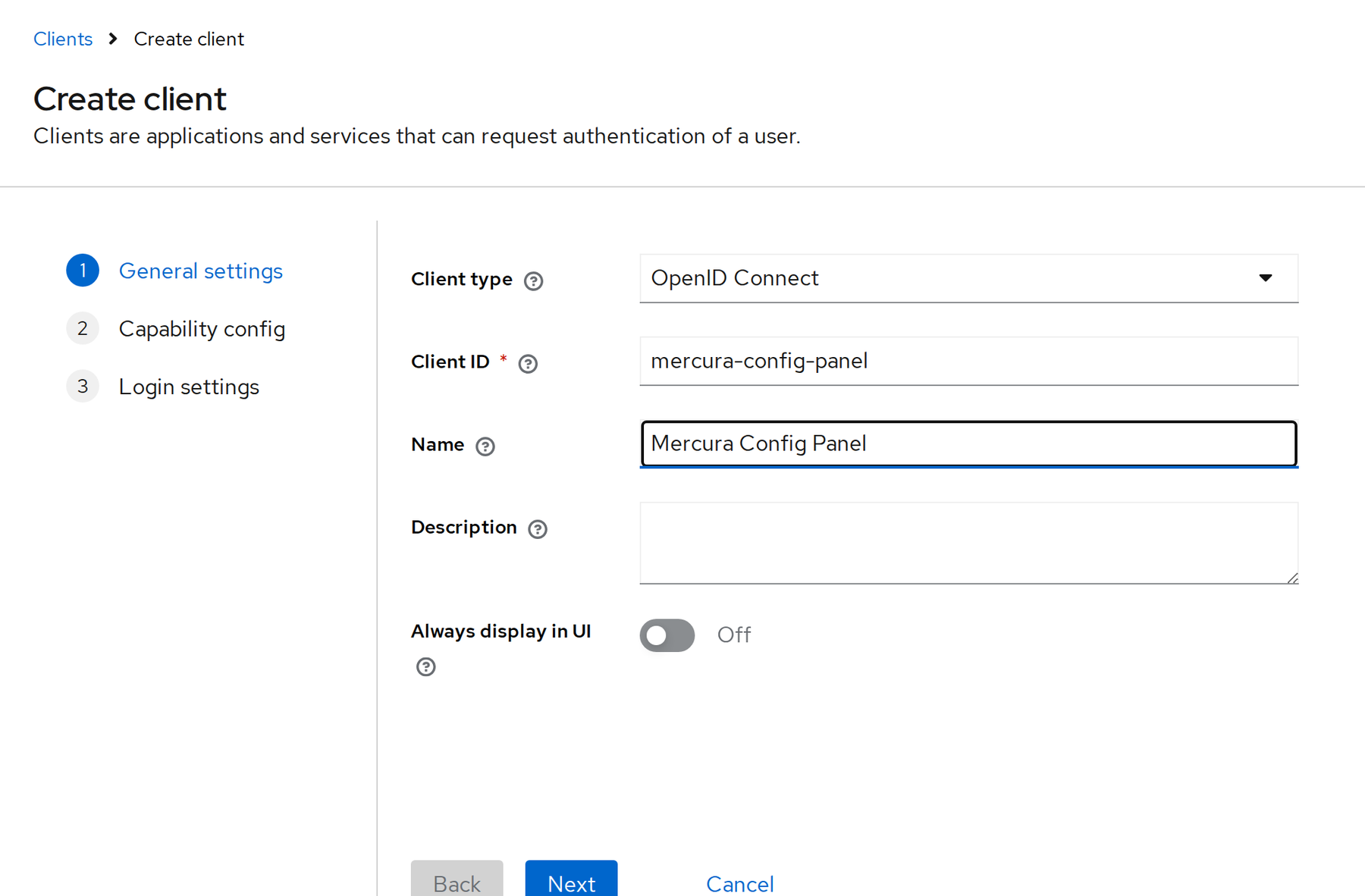
- Clients → Create client.
- Client type: OpenID Connect. Client ID: e.g.
mercura-config-panel. Give it a name and click Next.
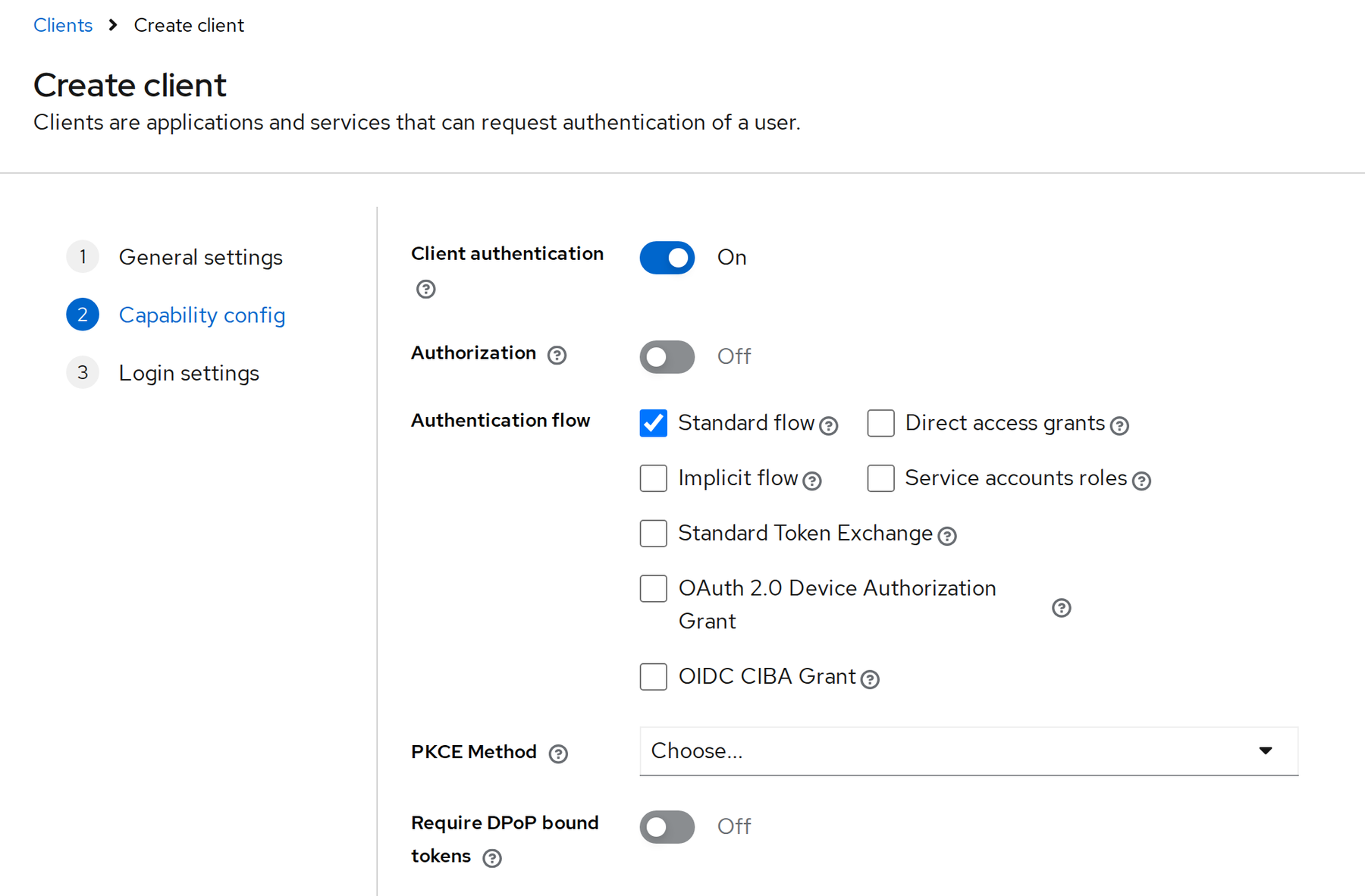
- Client authentication: On (this makes it a confidential client with a secret). Keep Standard flow ticked. Next.
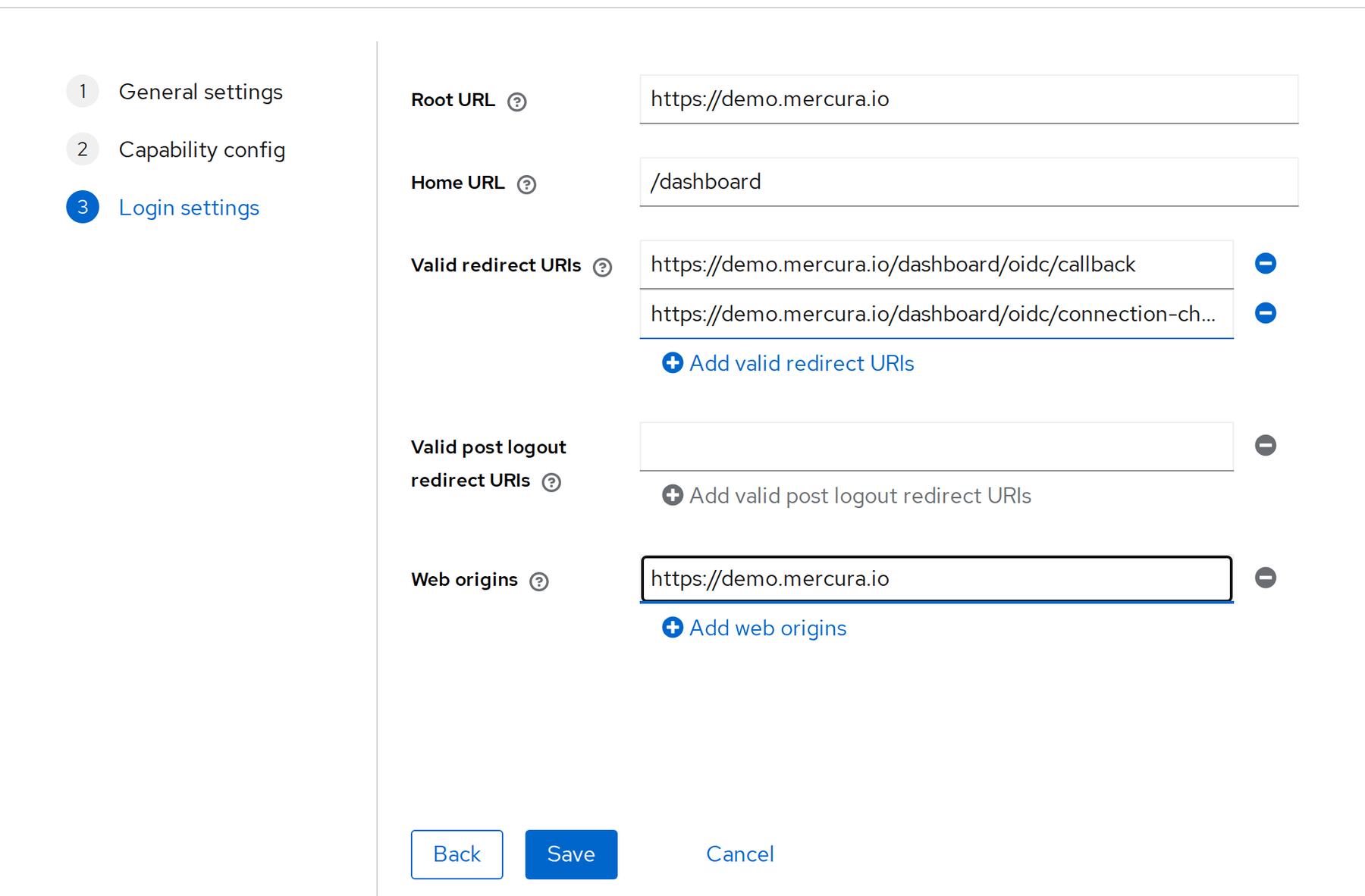
- Login settings:
- Root URL: your Mercura address, e.g.
https://demo.mercura.io - Valid redirect URIs: the Login callback, then Add valid redirect URIs and the Check callback
- Web origins: your Mercura address
- Root URL: your Mercura address, e.g.
- Save.
3. Copy the client secret
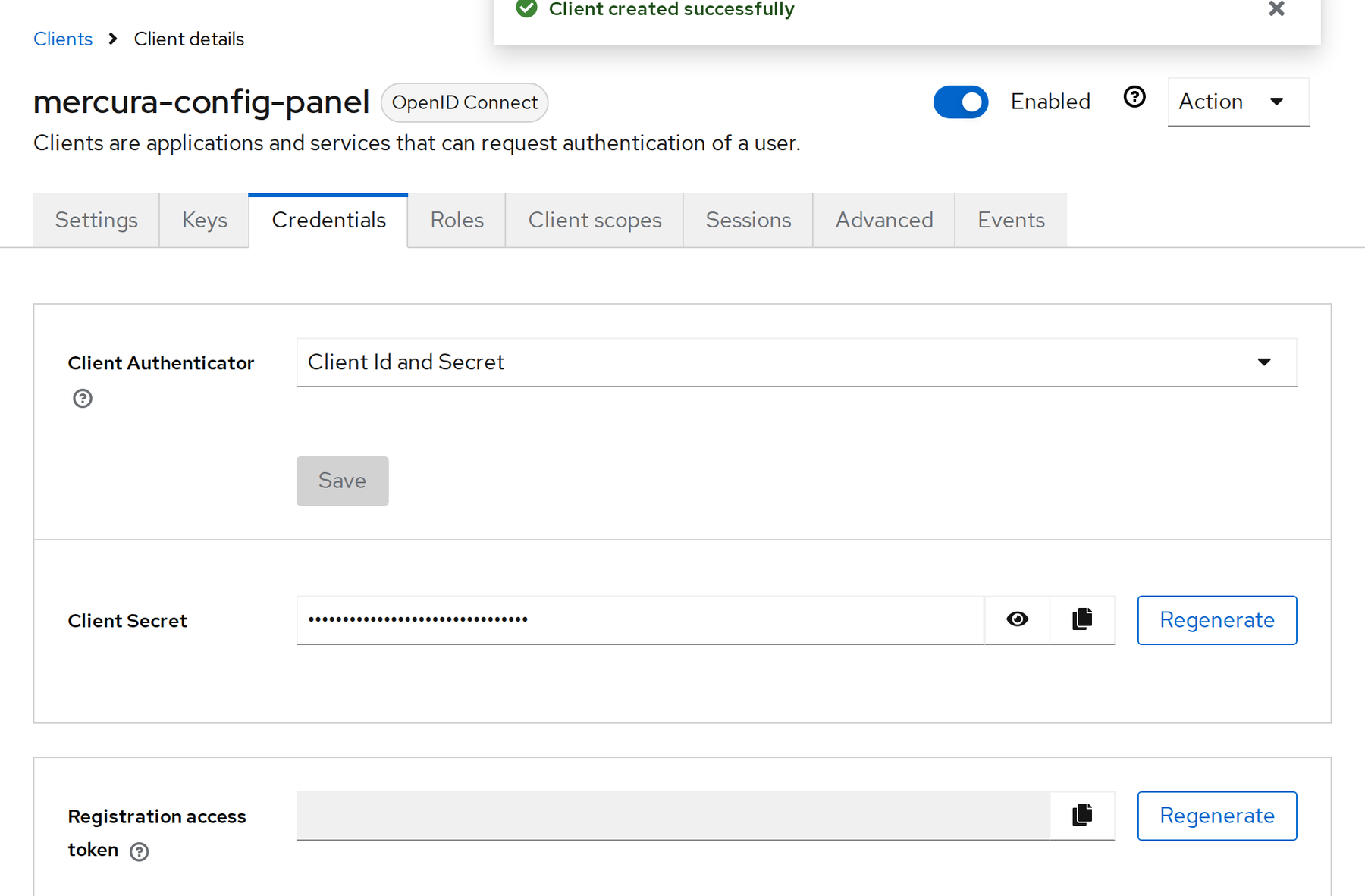
Open the client’s Credentials tab and copy the Client Secret.
4. Send groups (optional)
To give access levels by Keycloak group:
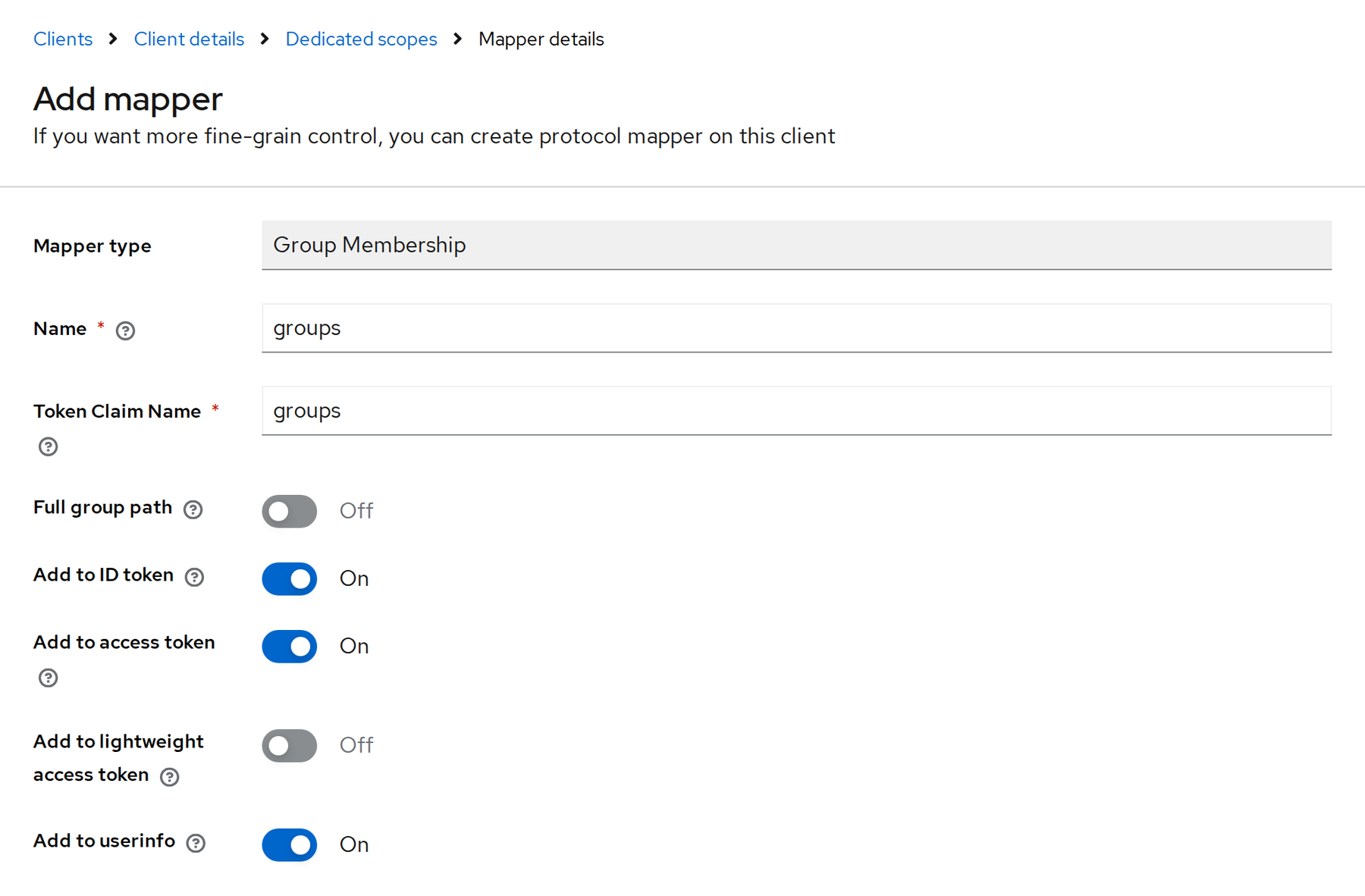
- In the client, open Client scopes →
<client-id>-dedicated→ Configure a new mapper → Group Membership. - Name and Token Claim Name:
groups. - Full group path: Off (sends
Salesinstead of/Sales). Keep Add to ID token on. - Save.
Keycloak then sends an ID token like this:
{ "iss": "https://sso.acme.example/realms/acme", "aud": "mercura-config-panel", "name": "Alex Morgan", "email": "alex.morgan@acme.example", "preferred_username": "alex.morgan", "groups": ["Sales"]}5. Connect in Mercura
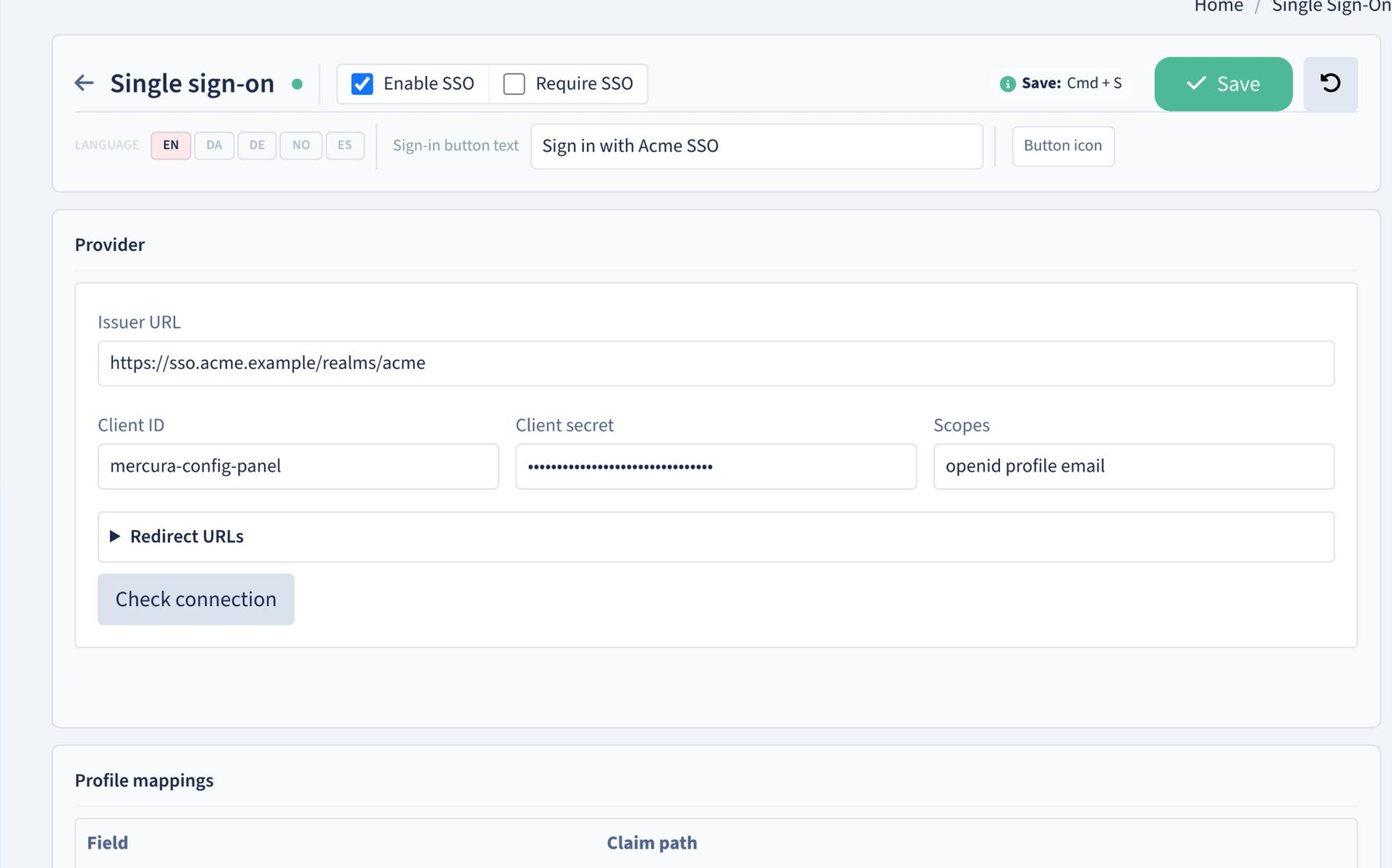
In Settings → Single Sign-on:
| Field | Value |
|---|---|
| Issuer URL | https://<keycloak-host>/realms/<realm>, e.g. https://sso.acme.example/realms/acme |
| Client ID | e.g. mercura-config-panel |
| Client secret | From the Credentials tab |
| Scopes | openid profile email |
| Sign-in button text | e.g. Sign in with Acme SSO |
Leave Enable SSO unticked. Click Save, then Check connection.
The Issuer URL must be reachable from the Mercura server, not only from your own browser.
6. Map groups to levels and enable SSO
| Claim path | Value | Level |
|---|---|---|
groups | Sales | user |
groups | IT Admins | admin |
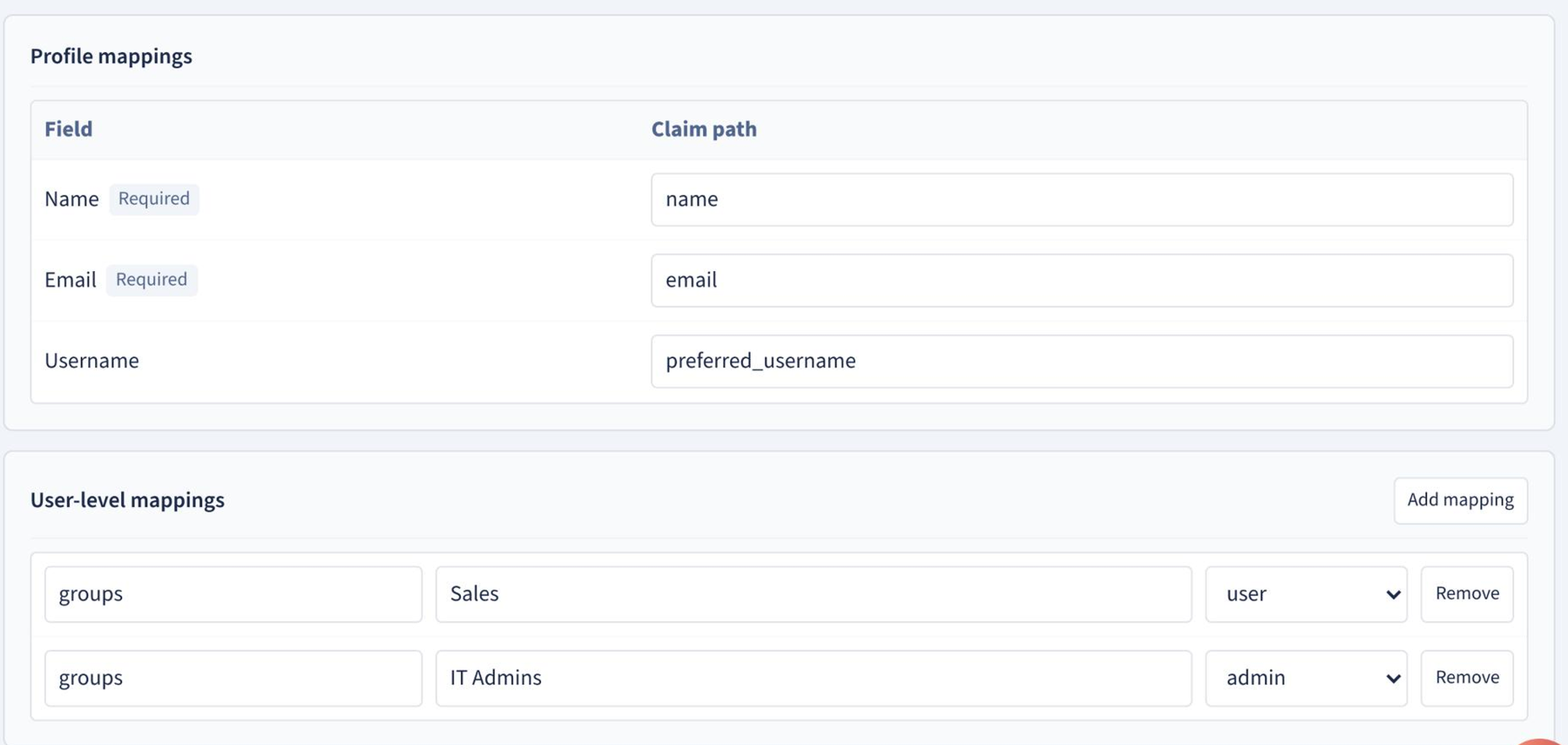
When the connection is verified and mappings are set, tick Enable SSO and Save.
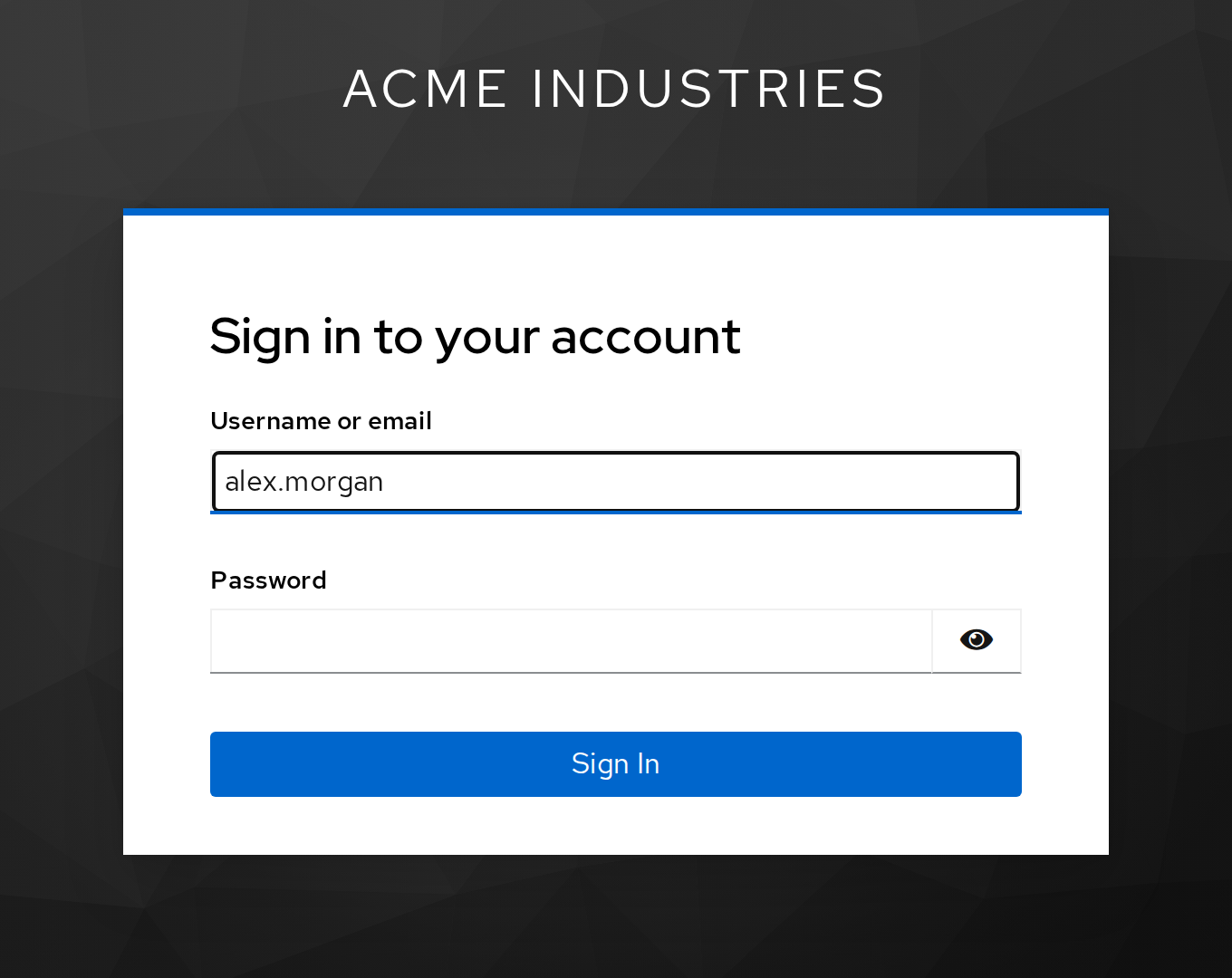
Users now sign in on your Keycloak login page: