

Single Sign-On (OIDC)
Single Sign-On (SSO) lets your users sign in to the Config Panel with their company account through any OpenID Connect (OIDC) identity provider, for example Microsoft Entra ID or Keycloak.
You find the settings under Settings → Single Sign-on.
How it works
- You register Mercura as an application (a client) in your identity provider.
- You paste three values from the identity provider into Mercura: the Issuer URL, the Client ID and the Client secret.
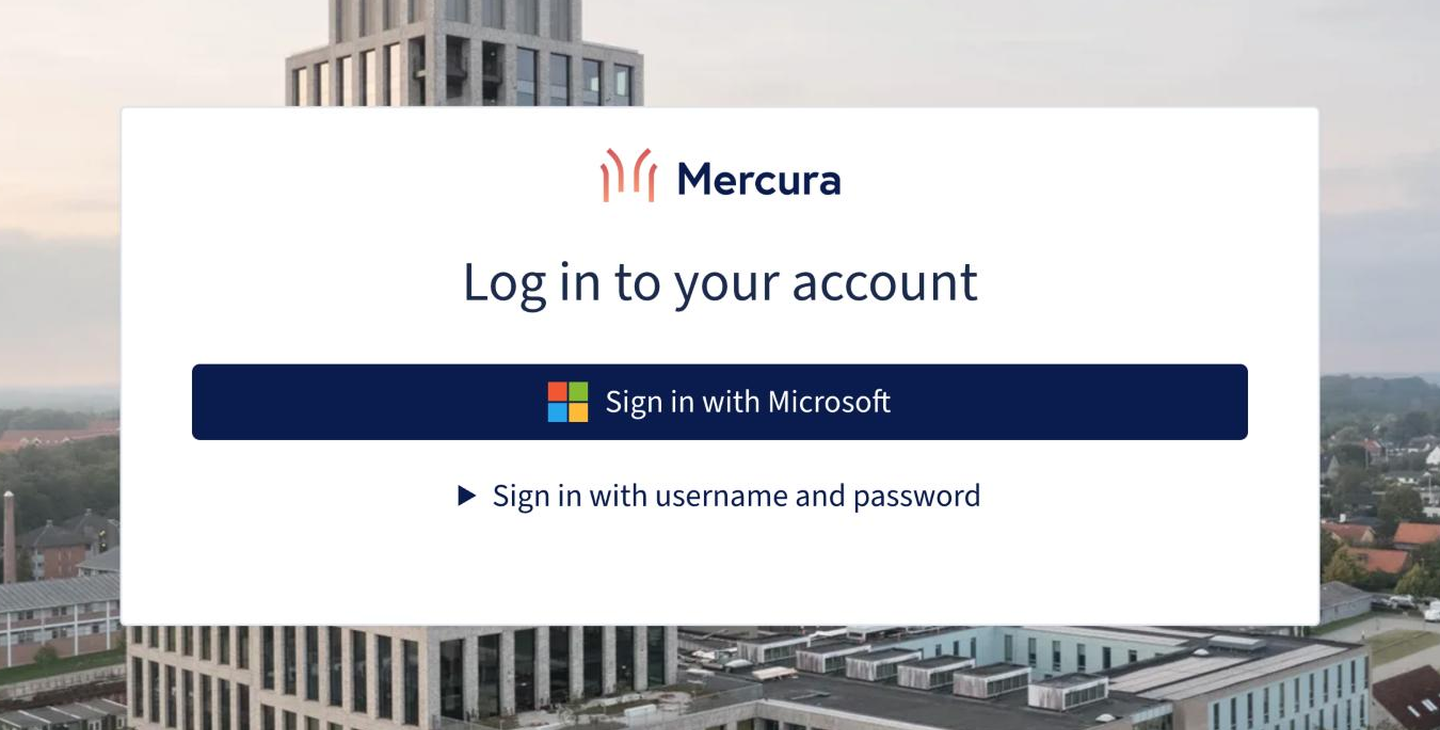
- Mercura shows a Sign in with … button on the login page. When a user clicks it, they sign in at your identity provider and are sent back to Mercura.
- Mercura reads the claims in the ID token (name, email, groups, tenant …) and uses your mappings to create or update the user and give them the right access level.
Provider guides:
1. Copy the redirect URLs
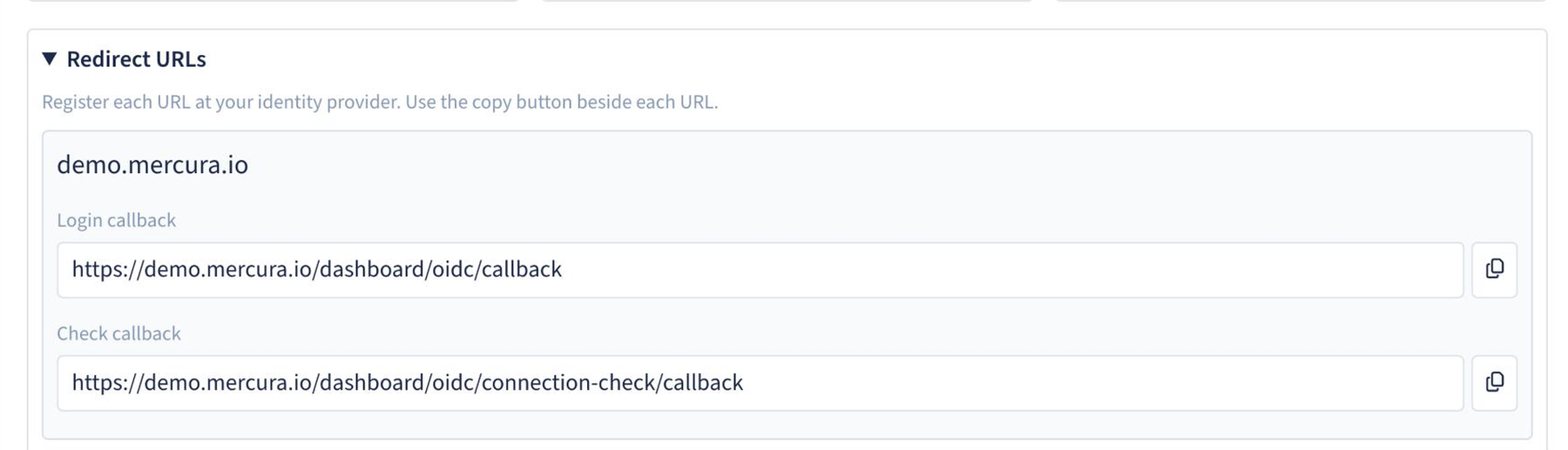
Your identity provider must know where to send users back after they sign in. Mercura lists the exact URLs for your environment.
Open Settings → Single Sign-on, expand Redirect URLs and copy both with the copy button next to each one:
| Name | Example | Used for |
|---|---|---|
| Login callback | https://<your-domain>/dashboard/oidc/callback | Normal sign-in from the login page |
| Check callback | https://<your-domain>/dashboard/oidc/connection-check/callback | The Check connection button |
Register both URLs at your identity provider. If the Check callback is missing, the connection check fails with a redirect URI error even though normal sign-in may work.
2. Connect your identity provider
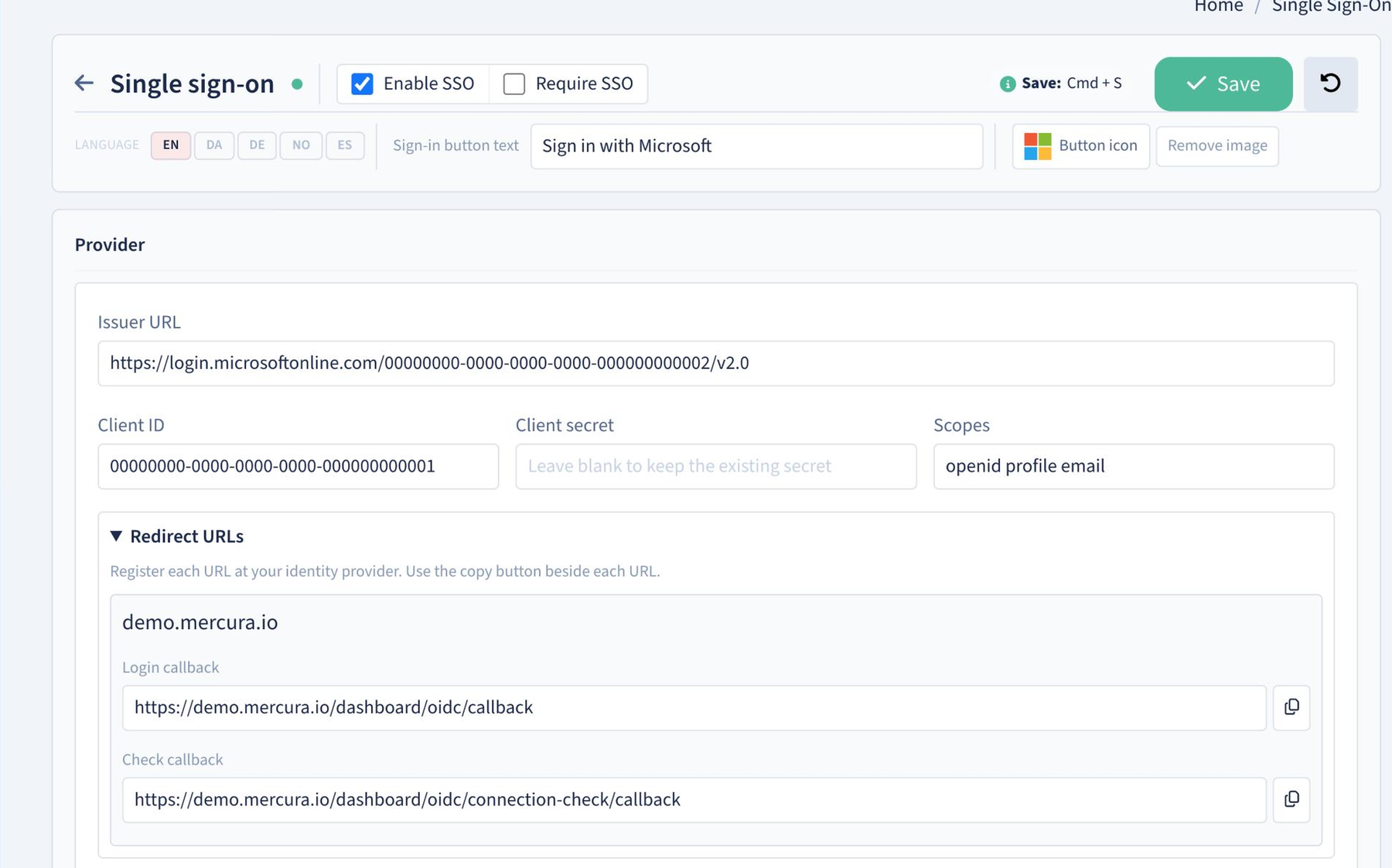
| Field | What to enter |
|---|---|
| Issuer URL | The OIDC issuer of your identity provider. Entra: https://login.microsoftonline.com/<tenant-id>/v2.0. Keycloak: https://<keycloak-host>/realms/<realm> |
| Client ID | The application (client) ID from your identity provider |
| Client secret | The client secret value. After saving, the field stays empty; leave it blank to keep the existing secret |
| Scopes | Filled in with openid profile email. Add more scopes if your provider needs them |
| Sign-in button text | The text on the login page button, per language (EN, DA, DE, NO, ES), e.g. Sign in with Microsoft |
| Button icon | Optional image shown on the button, e.g. your identity provider’s logo |
| Enable SSO | Shows the SSO button on the login page. Leave this off until Check connection succeeds (see step 5) |
Click Save (or press Ctrl + S or Cmd + S). Leave Enable SSO unticked for now.
3. Check the connection
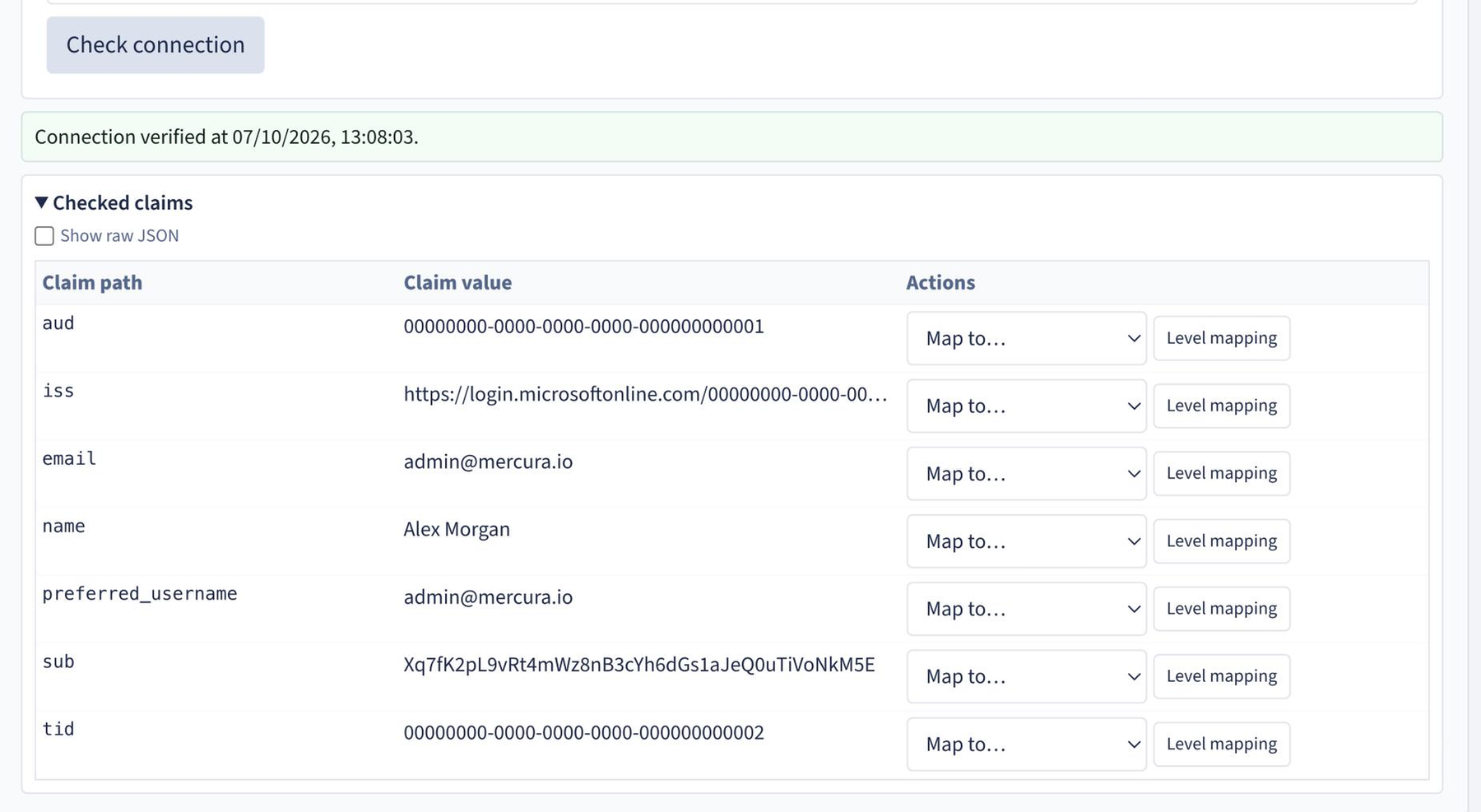
Click Check connection. Mercura opens a sign-in window at your identity provider; sign in once. Afterwards Mercura shows Connection verified at … and a Checked claims table with every claim your provider sent. You must complete this step before you can turn on Enable SSO and save again.
From each claim you can use Map to… to use it for a profile field, or Level mapping to create a user-level mapping from it.
4. Mappings
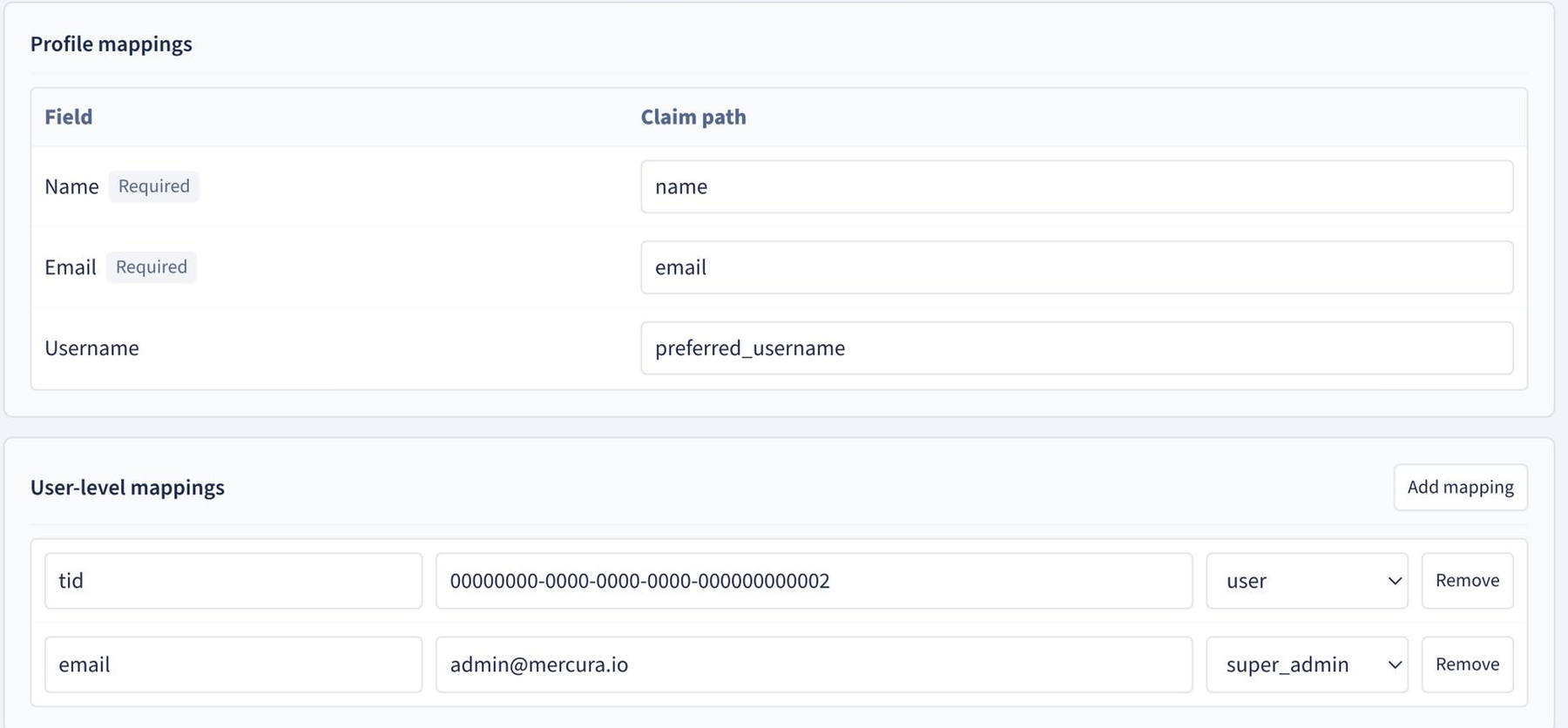
Profile mappings decide which claim fills each user field:
| Field | Typical claim |
|---|---|
| Name (required) | name |
| Email (required) | email |
| Username | preferred_username |
User-level mappings decide the access level. Each row is claim path = value → level (customer, user, admin or super_admin). Examples:
tid= your Entra tenant ID →user: everyone in your company gets access.email=it@your-company.com→super_admin: one named administrator.groups=Sales→userandgroups=IT Admins→admin(Keycloak groups).
5. Optional or required SSO
After a successful Check connection and your mappings are in place, tick Enable SSO and Save.
With only Enable SSO ticked, SSO is optional: users can still sign in with username and password.
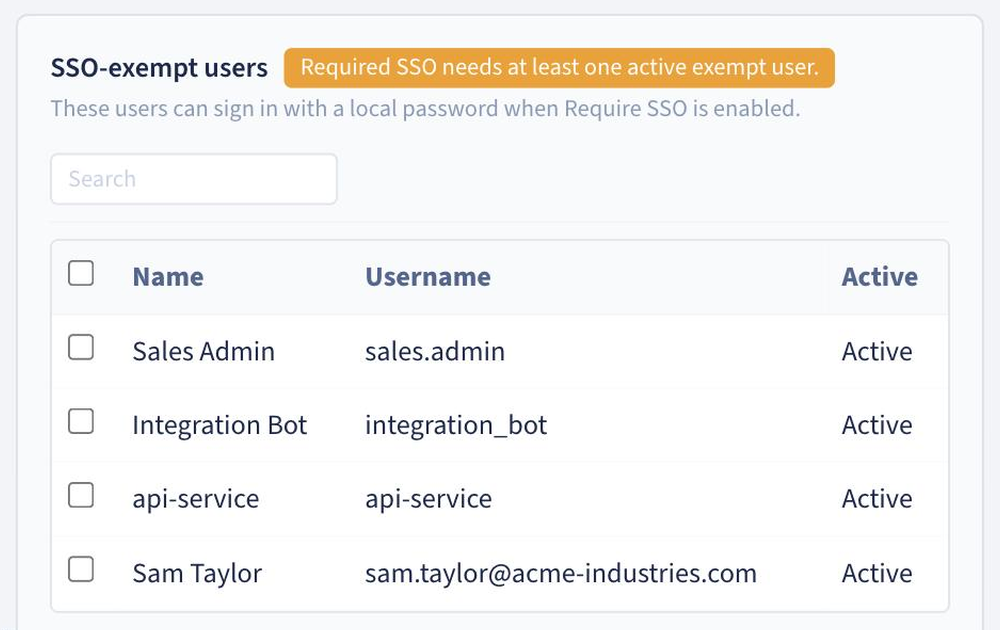
Tick Require SSO to make SSO the only way in. Before you can save, pick at least one active SSO-exempt user. Exempt users can still sign in with a local password, so you can get in if the identity provider is unavailable.
6. Signing in
Users click the button on the login page, sign in at the identity provider and land in Mercura with the level from your mappings.
Troubleshooting
| Problem | What to check |
|---|---|
| Redirect URI mismatch | Both the Login callback and the Check callback must be registered at the identity provider, exactly as shown in Mercura |
| Invalid client secret | Entra: paste the secret Value, not the Secret ID. Secrets expire; create a new one and paste it again |
| User gets no access | Look at Checked claims and make sure a user-level mapping matches one of the user’s claims |
| Missing email | Entra: add the optional email claim. Keycloak: make sure the user has an email address |