

Microsoft Entra ID
This guide connects Microsoft Entra ID to Mercura. You need permission to create app registrations in the Microsoft Entra admin center (or the Azure portal).
Before you start, copy the two Redirect URLs from Settings → Single Sign-on → Redirect URLs in Mercura (see Overview).
1. Register an application
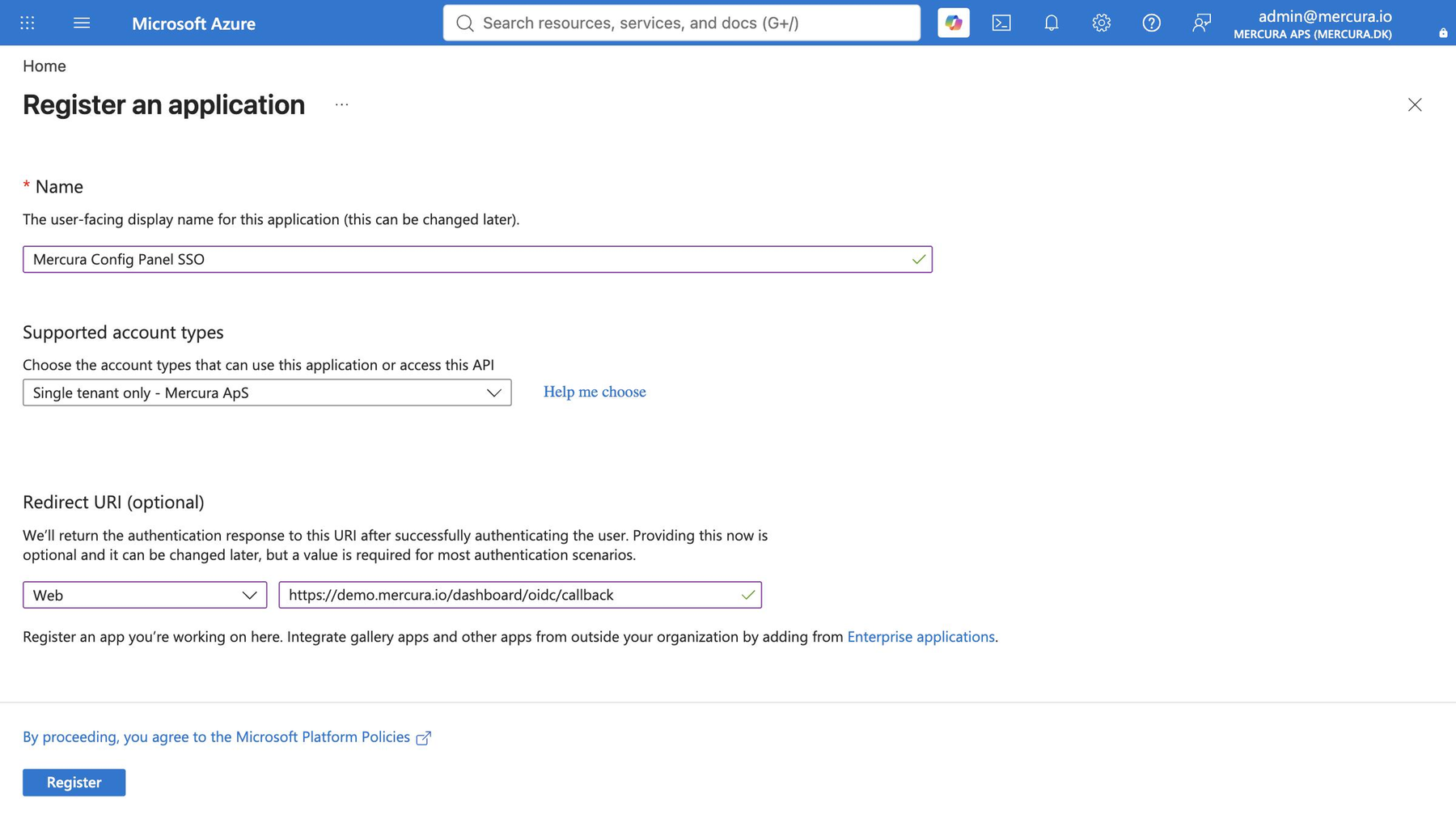
- Go to Microsoft Entra ID → App registrations → New registration.
- Name: e.g. Mercura Config Panel SSO.
- Supported account types: Single tenant only.
- Redirect URI: platform Web, paste the Login callback from Mercura.
- Click Register.
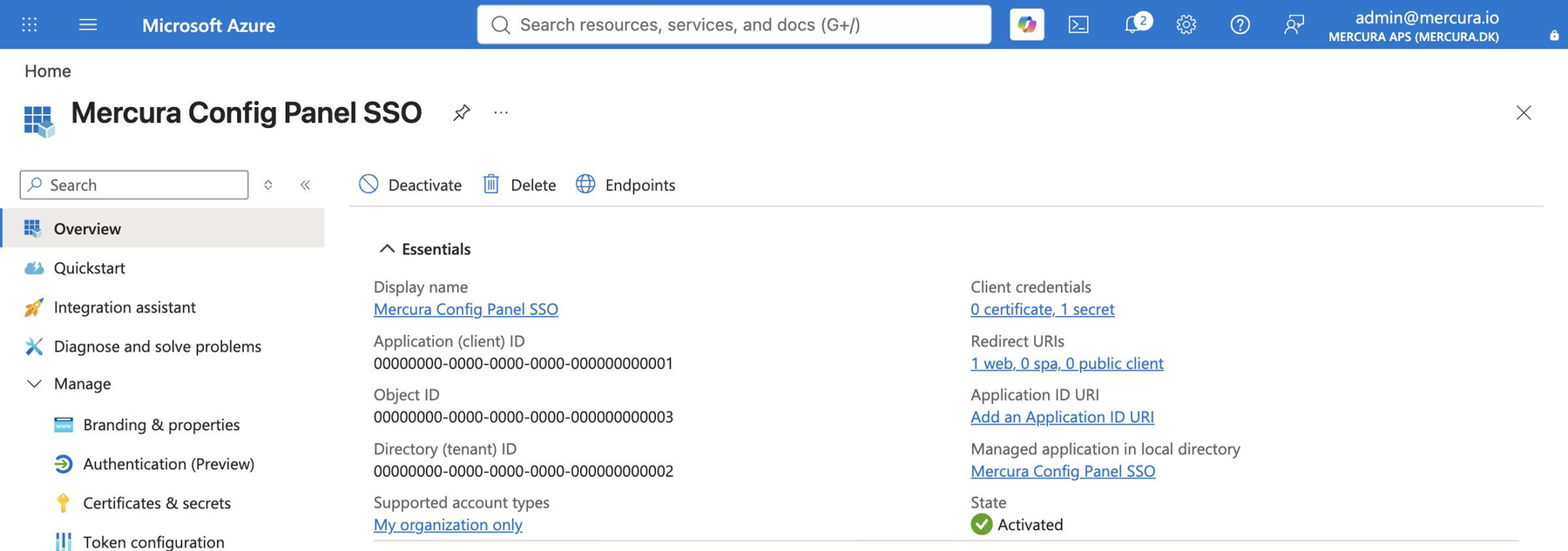
On the Overview page, note:
- Application (client) ID: the Client ID in Mercura.
- Directory (tenant) ID: used in the Issuer URL.
2. Add the Check callback
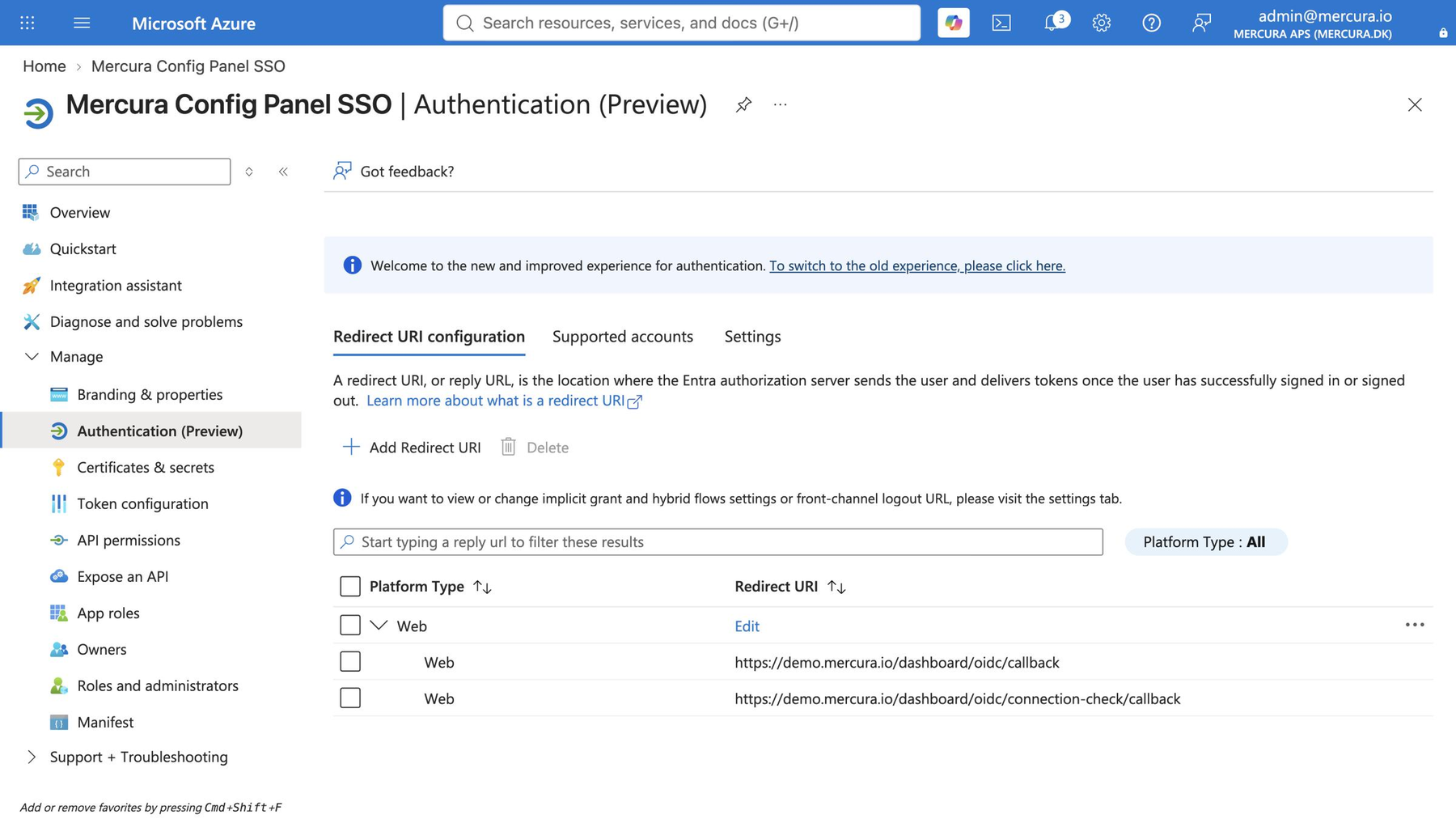
- Open Authentication.
- Add Redirect URI → Web, paste the Check callback from Mercura and save.
Both URLs are now listed:
3. Create a client secret
- Open Certificates & secrets → Client secrets → New client secret.
- Enter a description and an expiry, then Add.
- Copy the Value right away. It is only shown once. Do not use the Secret ID.
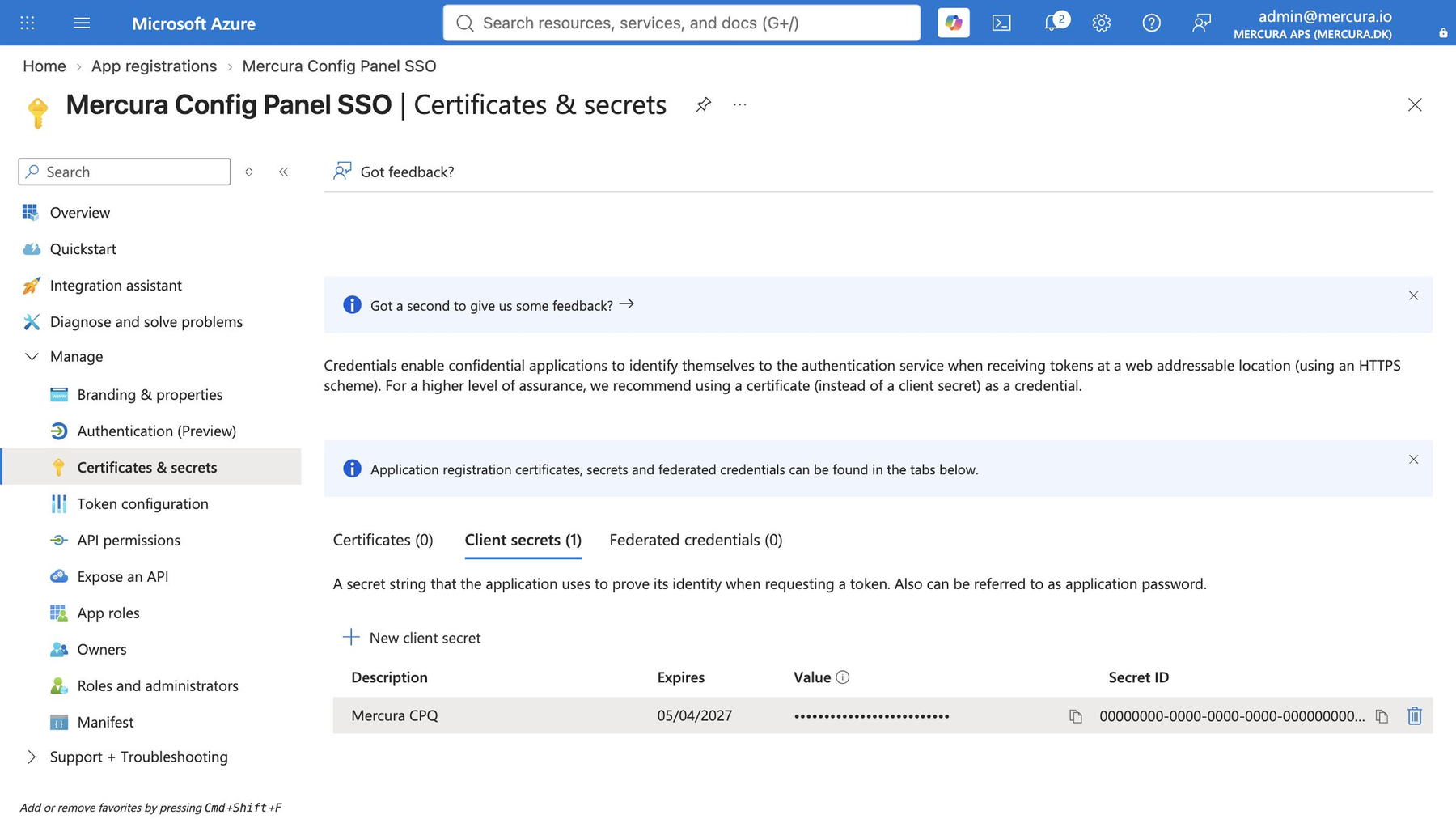
Note the expiry date. When the secret expires, create a new one and paste it into Mercura.
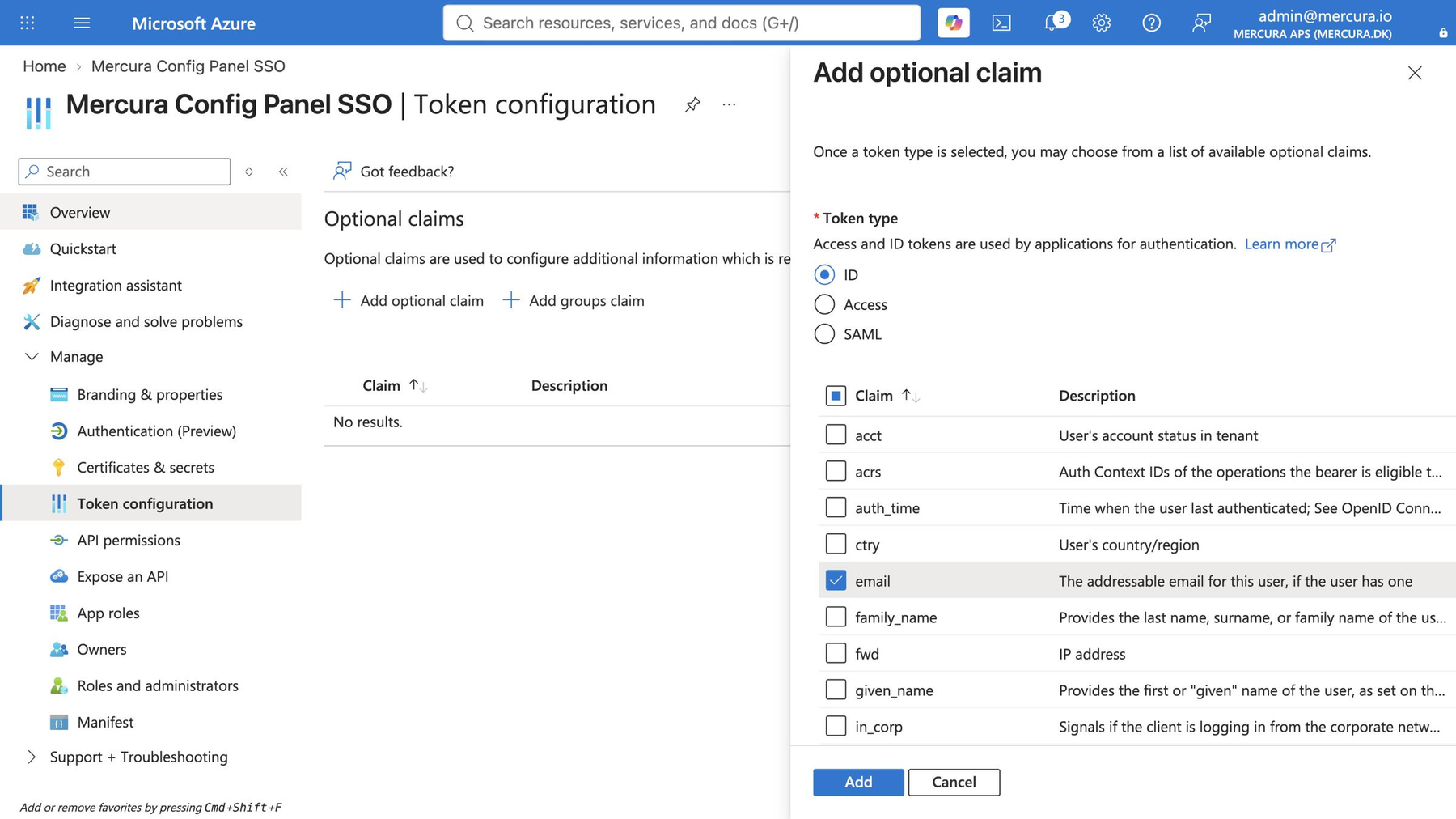
4. Add the email claim
- Open Token configuration → Add optional claim.
- Token type ID, tick email, then Add.
5. Connect in Mercura
In Settings → Single Sign-on:
| Field | Value |
|---|---|
| Issuer URL | https://login.microsoftonline.com/<Directory (tenant) ID>/v2.0 |
| Client ID | The Application (client) ID |
| Client secret | The secret Value |
| Scopes | openid profile email |
| Sign-in button text | e.g. Sign in with Microsoft |
| Button icon | Optional: the Microsoft logo from Microsoft’s brand resources |
Leave Enable SSO unticked. Click Save, then Check connection.
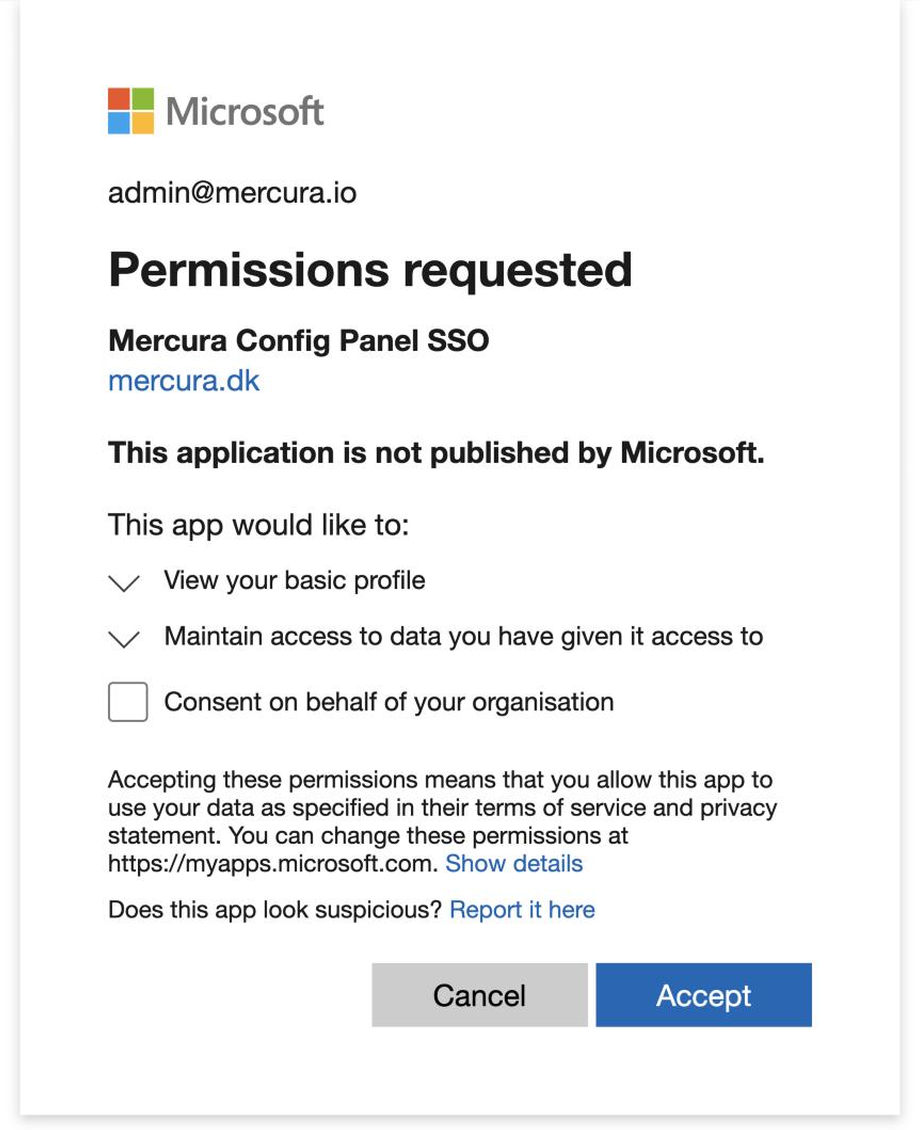
The first time a user signs in, Microsoft may ask them to accept the requested permissions. An administrator can grant consent for the whole organisation to skip this.
6. Map users and enable SSO
Typical mappings for Entra:
| Claim path | Value | Level |
|---|---|---|
tid | your Directory (tenant) ID | user |
email | your administrator’s email | super_admin |
See Mappings for details. When the connection is verified and mappings are set, tick Enable SSO and Save.